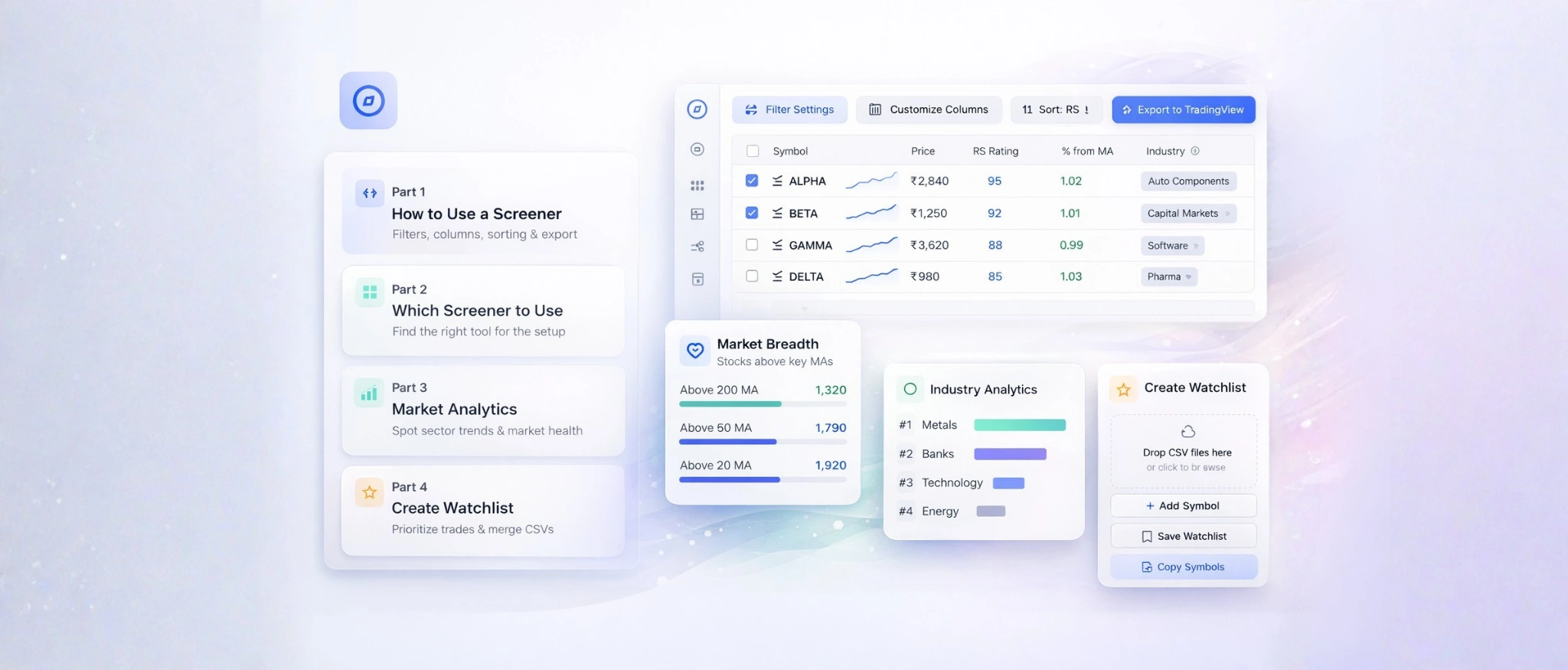
This page helps you use the website better. It explains some not-so-obvious details about navigating the site. If you're unsure about anything on the website, you'll probably find the answers here. Having said that, the user guide is broadly divided in to 4 parts
- Part 1 : How to use a given screener and options inside it
- Part 2 : Which screener to use when
- Part 3: Market Analytics
- Part 4 : Create Watchlist
Part 1: Inside a screener :-
Let's start with the basics. Each and every screener in the website displays a table of data. And the drill is same across all screeners
- Filter Settings
- Customize Columns (not compulsory)
- Sorting Data
- Export to TradingView directly
- AND, OR Between Saved Scans
- % from MA, How to fill?
- Bonus: Basic Industry column
Now let's dive in to each of the above steps in detail
Filter Settings :-
The default data shown in any screener is usually large and includes circuit stocks and illiquid names, weak stocks (less than 200MA, less RS rating) etc. Inorder to get rid of these names, you can choose parameters of your choice as shown in dialogue box below

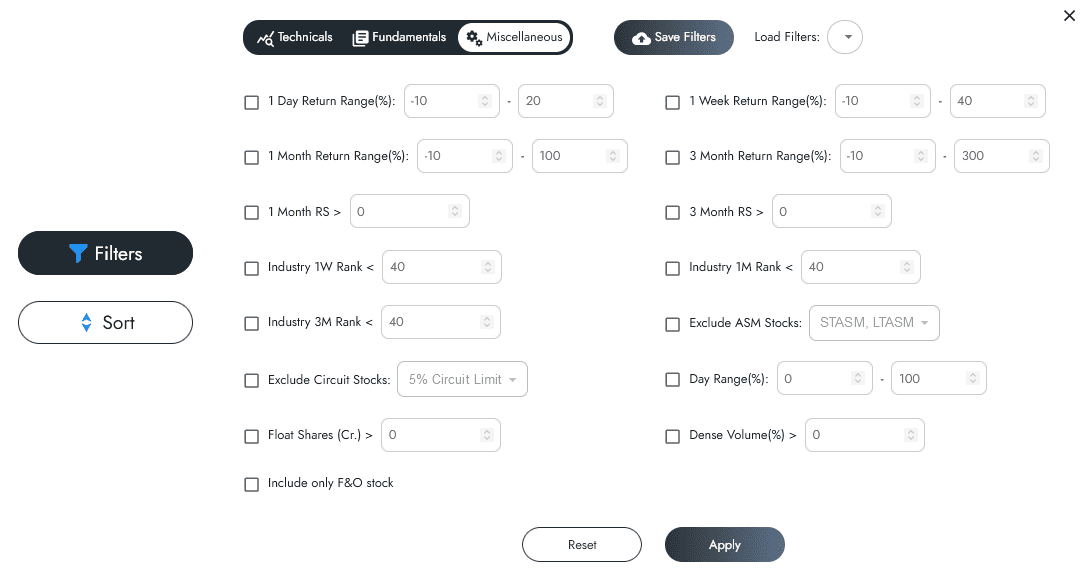
Note: Utilize the 'Save Filters' option to store your filter settings. This way, you can easily select and apply them in the future using the 'Load filter' option, eliminating the need to input values repeatedly.
Customize Columns :-
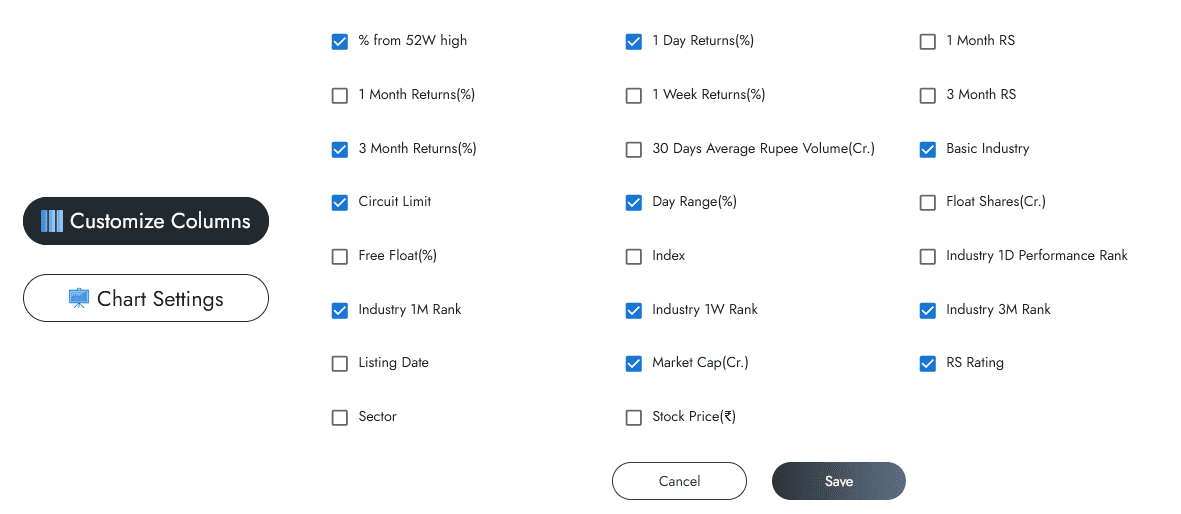
If noticed, the parameters in the dialogue box of filter settings shown above is more than the no of columns shown in a screener by default. You can choose to view this additional data or Hide existing data by using the Hide/Display data option as shown below.
Sorting Data :-
You can easily sort the data in the table on any page by clicking on the column heading of the parameter you're interested in. By default, the data is sorted based on the RS rating. To change the sorting, just click on the desired column heading. The arrow next to the column name indicates whether the data is sorted in ascending or descending order. Clicking on the column heading toggles between ascending and descending order.


Export Symbols to TradingView :-
Once you have sorted the data, your data is now ready to be seamlessly transferred to the trading view in a few clicks. Please follow the steps as shown below.
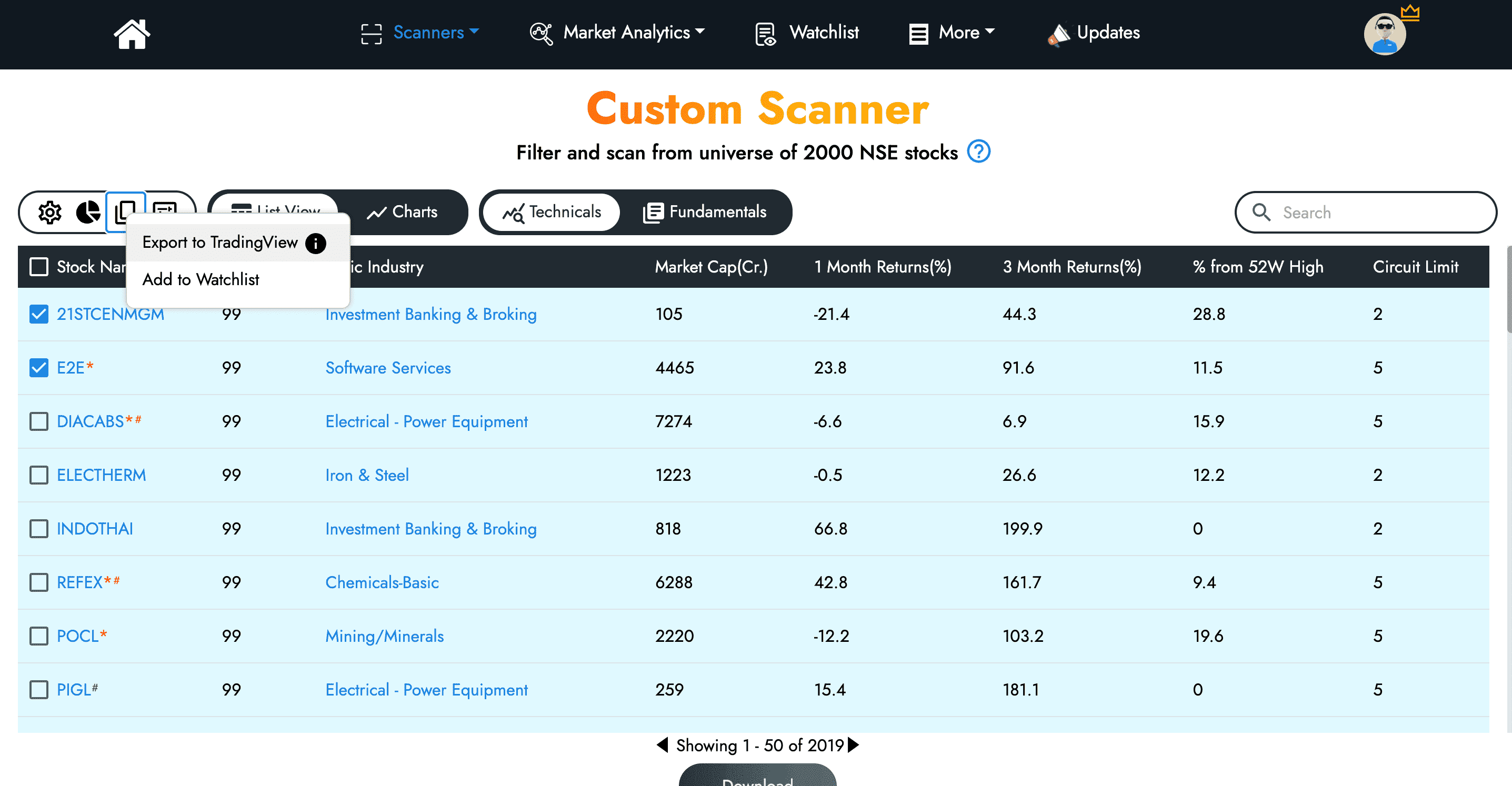
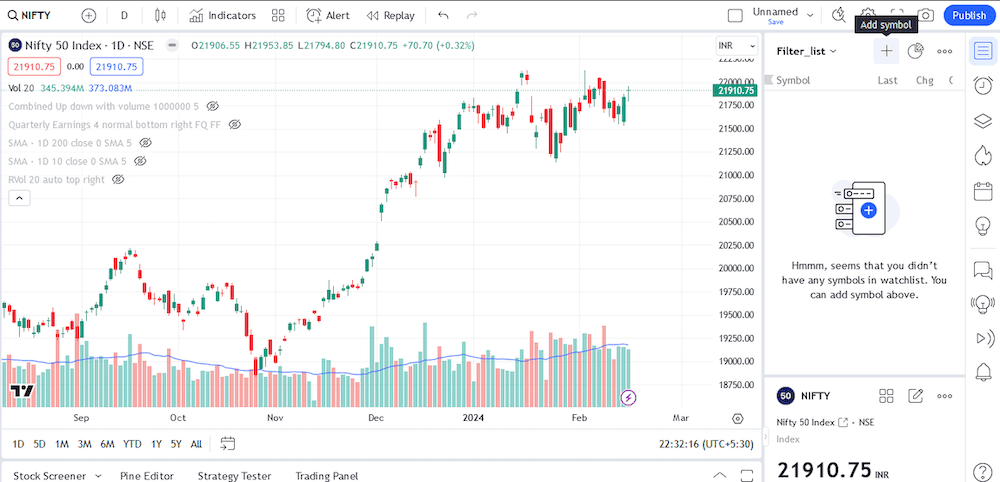
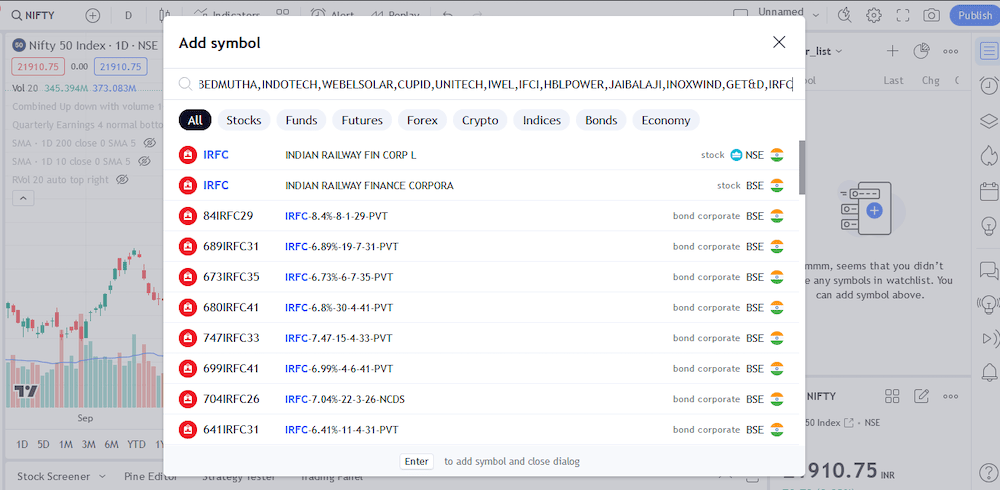
Bingo! All the filtered names in website are now added to your watchlist in Trading view
Note: If you don't have a trading view premium, this option might not work for you as trading view doesn't allow more than 30 names to be imported for the free version. You've to download the symbols and transfer them to trading view.
AND, OR Between Saved Scans :-
Remember Venn diagrams?

OR Filter: You get list of stocks that appear in either Scan 1, Scan 2, or both(blue region alone + red region alone + middle portion)
AND Filter: List of stocks common to both Scan 1 & Scan 2 output(Middle portion).
Note: While choosing AND, OR between Saved Scans, YOU WON’T SEE any filters highlighted anymore on the screen. You can directly click apply.
But if you’re curious to understand why that is the case, read on....
Explanation:
First let’s understand what happens when you create a scan by choosing a few filters and hit apply?
There is AND operation happening between all the filters selected, i.e the Stock is qualified in the output if ALL THE FILTERS ARE PASSED(OR means stock is qualified if ANY ONE OF THE FILTERS IS PASSED)
Now let’s analyse what happens underneath when OR is applied between two saved scans,
AND Filter: List of stocks common to both Scan 1 & Scan 2 output(Middle portion).
Note: While choosing AND, OR between Saved Scans, YOU WON’T SEE any filters highlighted anymore on the screen. You can directly click apply.
But if you’re curious to understand why that is the case, read on....
Explanation:
First let’s understand what happens when you create a scan by choosing a few filters and hit apply?
There is AND operation happening between all the filters selected, i.e the Stock is qualified in the output if ALL THE FILTERS ARE PASSED(OR means stock is qualified if ANY ONE OF THE FILTERS IS PASSED)
Now let’s analyse what happens underneath when OR is applied between two saved scans,

So when you apply OR between two saved scans: AND is happening among the filters in each scan, and between the output of those scans OR is happening.
There is no perfect visual representation of this in filter settings dashboard. Just the above picture explains it all.
There is no perfect visual representation of this in filter settings dashboard. Just the above picture explains it all.
% from MA, How to fill? :-
The following examples will helping you in filling lower limit and upper limit values of this filter
- If you want stocks with in 2% (above and below both) from MA, then lower limit is 0.98 (1-(2/100)) and upper limit is 1.02 (1 + (2/100))
So Lower limit is (1 -(x/100)) and upper limit is (1+(x/100)), where ‘x’ is the required percentage. - If you want only stocks 2% above, then leave lower limit as 1 and upper limit as 1.02.
Code 33 :-
"Code 33" is a stock selection strategy that identifies companies with three consecutive quarters of acceleration in three key areas:
- Earnings: The company's earnings are increasing at a faster rate.
- Sales: The company's sales are growing more rapidly.
- Profit Margins: The company is becoming more efficient, with improving profit margins.
Bonus: Basic Industry :-
If you wish to compare a given stock in the list with its peers from same Industry. Click on Industry and find the other stocks in the industry and their performance.
Part 2: Across the screeners :-
While the initial introduction to different screeners of the website has been attempted in previous blogs, this is a further dive into details of each scanner.
The main goal of this website is to pinpoint charts that are in the process of setting up and are on the verge of a breakout. Most scanners mentioned below show a new list everyday because each day some new stock is either forming horizontal or tight setups, experiencing gap-ups, or witnessing significant volume-based buying actions.
- 1a. Create scanner: Custom
- 1b. Create scanner: Himanshu template
- 1c. Create scanner: Chhirag template
- 2. Horizontal resistance: Daily, weekly
- 3. Tight setups
- 4. IPO Scanner: IPO Setups, Recent IPOs
- 5. Volume Footprint
Note: Horizontal ,tight setup, and volume footprint screeners do not include stocks that have already broken out or those that have been rejected near the resistance.
Create Screener: Custom :-
Consider this page as a generic filter for the 2000 NSE stocks in the market. Whether you want to sort names based on RS or apply basic filters to eliminate illiquid or circuit names based on market cap and float volumes, this is the go-to place.
Create Screener: Himanshu Template :-
If you prefer reviewing a set of names within the specified categories listed below, you can utilize the Himanshu template.

Create Screener: Chhirag Template :-
- Universal Scan :- Universal Scan is a liquidity scan. It removes all stocks which aren't worth our time and effort. We run all our scans over it.Primary reasons for the filter :
- Market Cap > ₹1000 Crores (This filter is based on recent SEBI rules. Stocks with a market cap below ₹1000 Crores are subject to ESM measures, which apply to all stocks under this threshold.)
- Market Cap < ₹200,000 Crores (This rule excludes large-cap stocks, which tend to produce slower movements and may not be worth the time and effort.)
- Stock Price > ₹10 and < ₹10000 (This filter is to eliminate either penny stocks and also those stocks which are too large priced as they also produce slow movement and are slightly less liquid in terms of price spread)
- 50 Days Avg. Turnover > 5 (This is our primary liquidity scan)
- Exclude Circuit Stocks (2% and 5% circuit stocks do not produce free movement as these are driven by operators and institutions aren't interested in such stocks)
- 3 Past 3.30 Scan :- 3 Past 3.30 is a setup scan applied on the EOD. This scan is used to identify candidates for momentum burst trades for the next trading day.Apart from liquidity filters of the Universal Scan, this scan has two additional criterias :
- Day's Range within 3% - This scan is to identify tightness so we can expect a volatility expansion on the next trading day.
- Price Above 50 and 200 EMA - this is to find candidates which are in uptrend.
- Further manual shortlisting according to Pradeep Bonde's 2LYNCH formula will help identify the final list of candidates to trade on the next day.
Create Screener: ProdigalTrader Template :-
- PVR(Price/Volume/RS) - Sequential Alignment :- The moving average provides an indication of a tentative fair value and is influenced by the length of time used for its calculation. One can establish short-term (20 days), medium-term (50 days), and long-term (250 days) averages. If these values are arranged sequentially as 20D > 50D > 250D, it indicates that the value has been increasing over the past year. When this logic is applied to price, volume, and relative strength, it encompasses all aspects of the current trend in which the stock is moving.
- PVR - 3D Ledge :- Ledge refers to something that exists within a specific range. To identify the key factors that can help decipher a stock's trend, we focus on three main elements: price, which indicates value; volume, which reflects supply and demand; and relative strength, which demonstrates the momentum behind price movements. This three-dimensional approach allows investors to filter quality stocks from others effectively.To establish this range, one can consider a variation of 10-15% around the highest values of price, volume, and relative strength recorded over the past year. For practical applications, the 200-day Exponential Moving Average(EMA) of volume is often utilized, although the 50-day EMA can also serve this purpose effectively.Additionally, by applying the condition EMA20 < EMA50 > EMA200 across all three parameters, you can identify numerous stocks that are consolidating and exhibiting low-volume pullbacks.
- Bull 45 :- This is an effort to identify stocks that are consistently bullish, characterized by a price increase at approximately a 45-degree angle without significant dips. To confirm this, a rising EMA50 over the last six months, along with the price consistently closing above it during that period, should be ensured. To strengthen this condition, it’s advisable to apply a minimum percentage threshold for the occurrence of these two criteria, with 90% being a good starting point."
Create Screener: Hiren Template :-
The objective of a swing trader is to buy stocks that are already in demand. This scanner identifies monthly gainers (20%+) and 3-month gainers (30%+), providing a list of significant winners where strong hands have demonstrated their influence. It also highlights stocks with sufficient liquidity, helping traders focus on major potential opportunities.
Horizontal Resistance Line :-
Within the Horizontal Resistance category, you have two additional choices:
- Daily: Stocks with a horizontal resistance line setup in daily charts
- Weekly: Stocks displaying a horizontal resistance line setup in weekly charts
Note:
- Certain stocks may show a horizontal resistance line in both daily and weekly charts
- Long base setups are typically identified on weekly charts
- You can apply filters to reduce no of names and retain strong names. For a given stock that is setup in
Tight setup :-
This is very straightforward and have list of stocks that display tightness on the right side of the chart or stocks consolidating sideways at all time high
Point 3 in above notes is applicable here as well
Recent IPOs :-
If you prefer manually scanning IPO stocks, you can choose a specific listing date, copy the symbols from this page, and then transfer the stocks to TradingView.
IPO Setups :-
This page exclusively showcases IPO stocks that are currently in the process of forming either horizontal or tight setups based on the provided listing date.
Volume Footprint :-
Imagine a scanner that finds all the stocks with purple dots in their base on TradingView(purple dot indicator in TV). The Volume Footprint scanner essentially provides a list of stocks with this kind of volume characteristics. These stocks are either having one big surge in volume or several smaller spikes while forming their base.
You'll notice that the list of stocks doesn't change much daily because a stock stays on the list until it breaks out of its base.
Part 3: Market Analytics :-
This section of the website is useful in understanding the broader industry trends( which industries are moving) and market health.
Industry Analytics :-
If your stock selection process is based on a top - down approach i.e focus on strong sectors /industries and then choose leaders in that industry, this page is a cheat code for you to do exactly that.
NSE stocks are categorized into their respective industries, and the performance of each industry is determined by the cumulative performance of its individual stocks.Then the industries are ranked against each other based on the performance value across multiple time scales: Weekly, Monthly and 3 Months.

If you come across an industry with a good rank in 1 month and 3 months, then it's an indication that the industry is proven and is showing strength compared to others. If the ranks across the time frames are improving(i.e 1w rank is better than 1M, and 1M is better than 3M rank) then it's an indication that the industry has started to gain traction.
Once you've identified the industry of interest, you can click on the industry name to further check the stocks responsible for the industry strength. You can sort the list stocks in that list by clicking on column headings of your interest.
Additionally, there is a graphical representation of the performance of these industry groups, illustrating the percentage of stocks within each group that are near their 52-week highs or have an RS above specific thresholds.
Note:
- To make analysis simpler, remove the industries which have less than 5 stocks in the industry group, and focus on groups which have significant no of stocks and outperforming others
- You can also analyze for 1- day performance. You can find this data by unhiding the 1 day performance in Hide/Display button
Industry Chart Plotting Approach:-
- Market Cap Weighted:-
The chart for a specific industry is generated based on the performance of its constituent stocks, with greater weight assigned to stocks with higher market capitalization. Stocks with very low market capitalization are excluded to minimize noise. The industry value on a given day is determined using the formula:
Industry Value = (Current Market Capitalization of Industry / Base Market Capitalization) × Base ValueThis formula is applied to plot all industry charts. - Equal Weighted:-
In this approach, the industry value is calculated by averaging the performance of constituent stocks in the industry. This method ensures that each stock contributes equally to the industry's performance, regardless of their market capitalization.
Market Breadth :-
This comes super handy in analyzing market health based on no of stocks above key Moving averages. If the number of stocks above key moving averages are declining, it suggest unfavorable conditions for trading, if it's improving then it's an indication for a healthy market
Top Gainers :-
Utilize this tool to identify the industries to which the top gainers belong. Apply the return type filter to select the time interval for analysis. Utilize the market cap and stock return filters to specify conditions for a stock to be classified as a top gainer. Additionally, use the number of stocks in the industry filter to exclude industries with very low stock counts. This will help determine whether the entire industry is experiencing movement or if it's just a few stocks driving the movement.
Part 4: Create Watchlist :-
This feature broadly serves 2 purposes
1)Prioritizing Stocks to Trade :-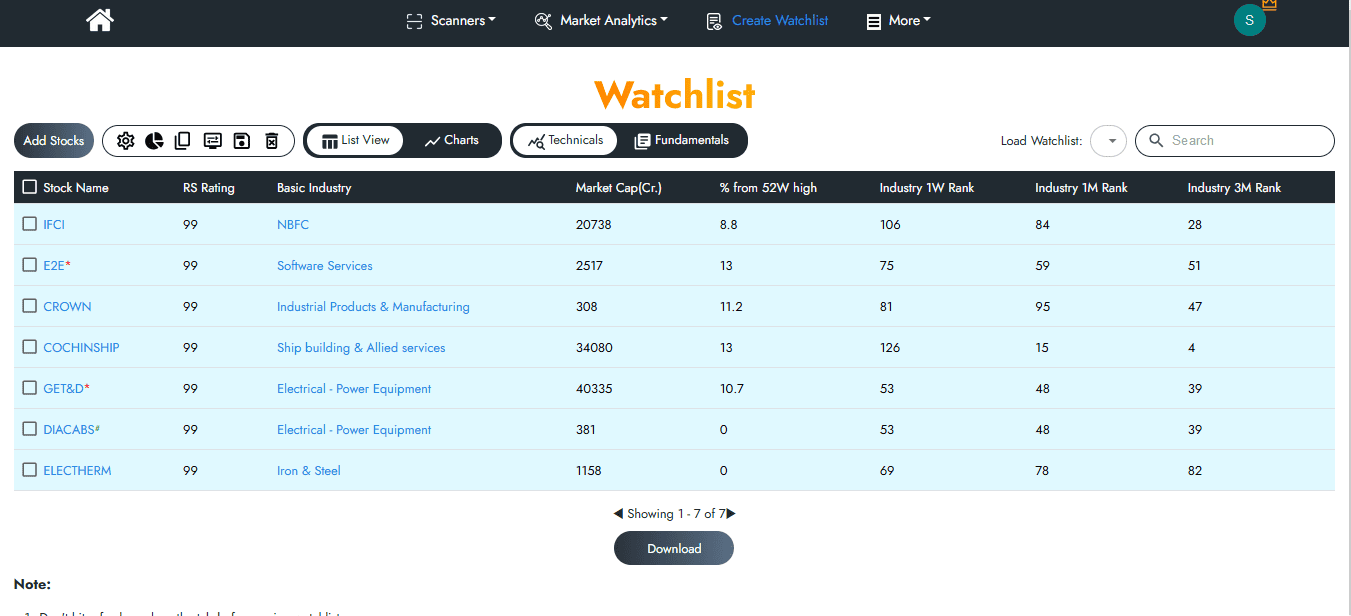
If you have a watchlist of multiple stocks and find it hard to prioritize a few setups to trade, this page helps you solve some confusion.. All you have to do is Add/Import your full watch list to this page and you'll find something as follows.
Once you've added/imported all the names,
- Check which of the stocks in watchlist are in industries showing strength (gauge the industry ranks) and un-prioritize the rest
- Eliminate if the stocks have low RS (if you prefer only to trade high RS names)
- If you include fundamentals also in the screening process click on the icon right to the symbol to be redirected to the screener page
By having all the data points at one single page, it's easier to make quick decisions and gives you a focused watchlist for your upcoming trades.
Note:
You can save your watchlist just like in TV (save watchlist) and choose to load your previous watchlists from the Choose watchlist option.
2)Merge csv to Import to Trading view :-
Typically, Trading view import option isn't compatible with export files of Market smith or Chartink etc. One has to remove extra columns of the exported excel files and then import to TV. And this process becomes even more complex when you have multiple csv that you would like to import to TV.
There is a simple work around for this,
1)Import multiple csvs you want to view in trading view as shown below
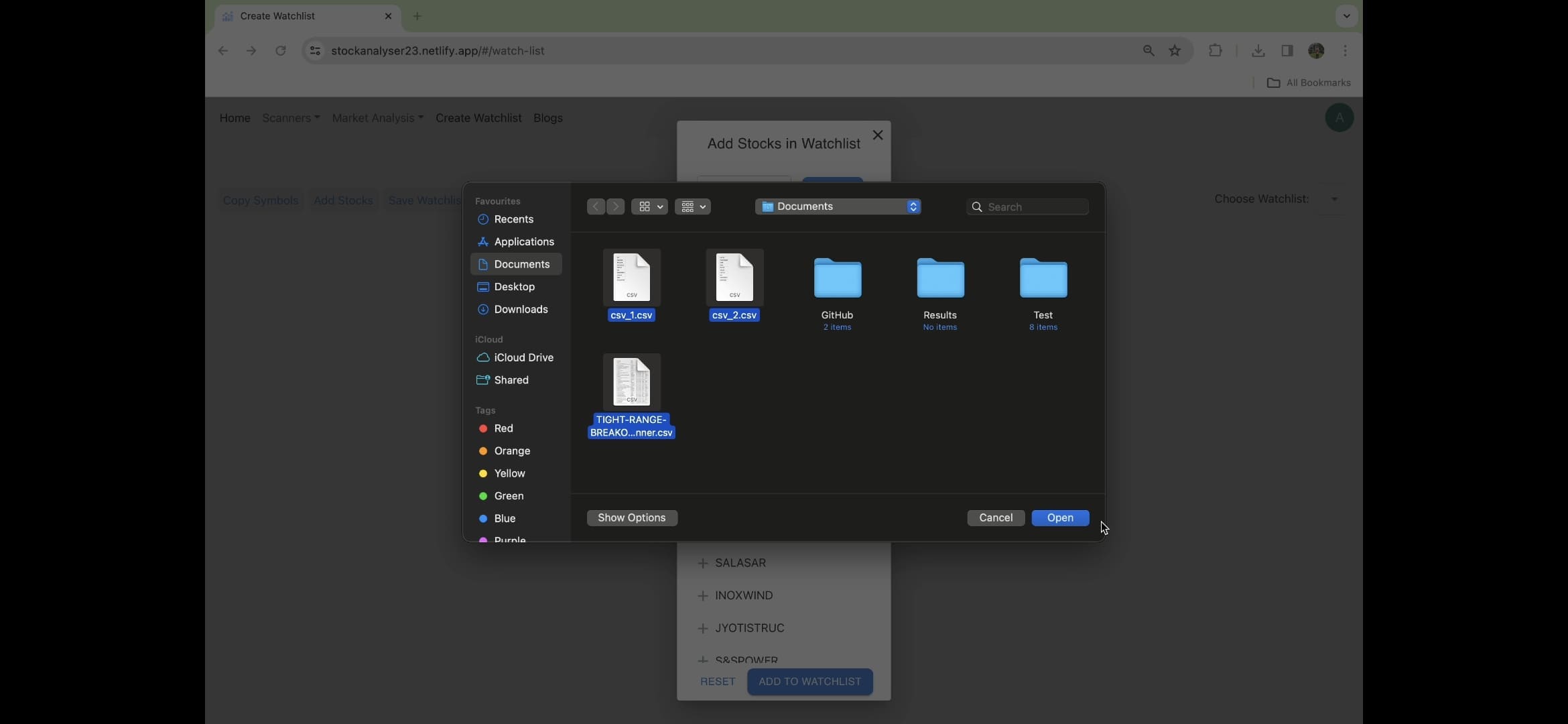
2)Choose replace if you want to override the existing watchlist or merge if you want to combine with existing names in the watchlist
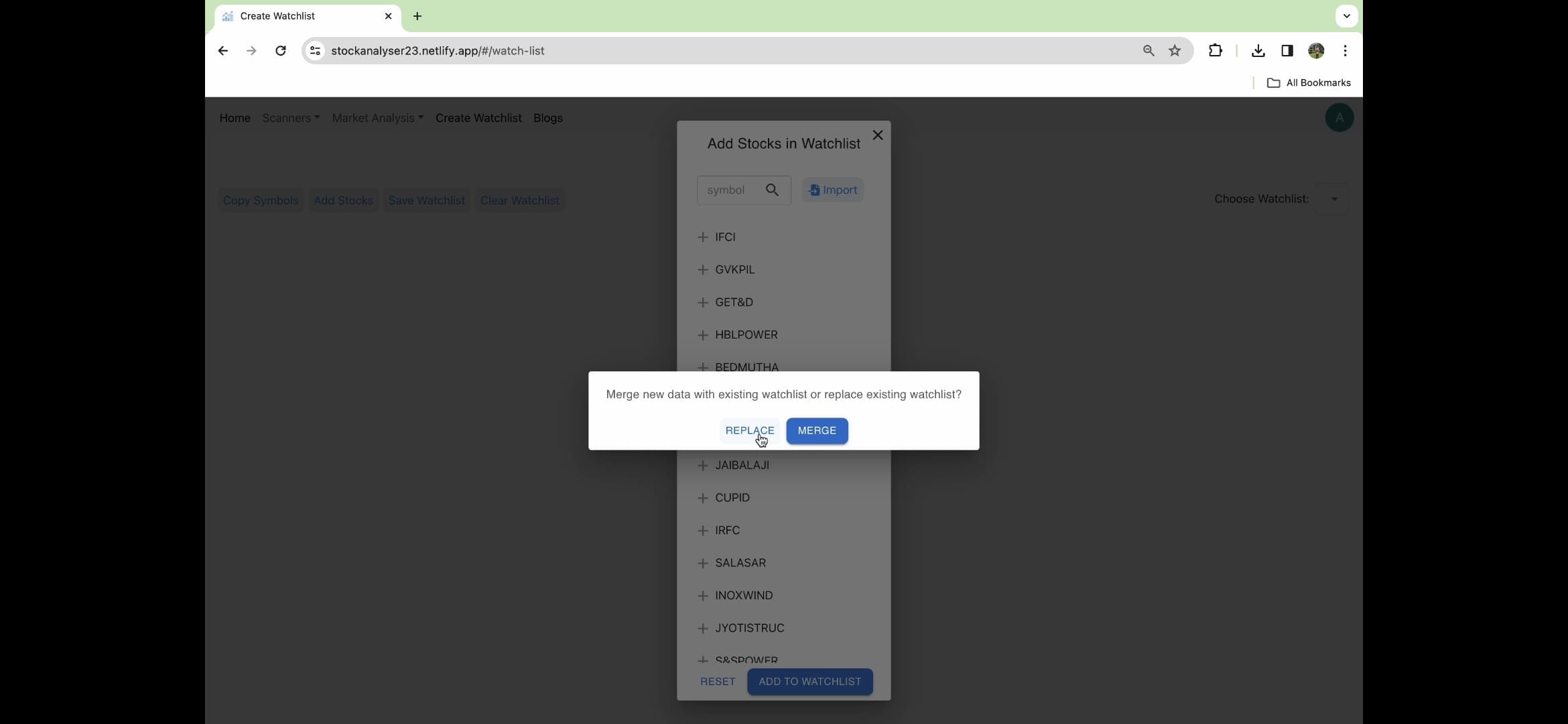
3)The website removes any duplicate names if present, and you have the final list ready. You can now use copy symbols to seamlessly transfer the names to trading view.